
Secure escrow material
Collected and archived (zipped) Escrow material should always be encrypt with OpenPGP. This ensures that the material could never be read by any third party. We recommend GnuPG (The GNU Privacy Guard), this is a free implementation of the OpenPGP standard. This page contains the detailed instructions for securing escrow material with GnuPG on Windows and MacOS.

Gpg4win (Windows)
Gpg4win (GNU Privacy Guard for Windows) is encryption software for files and emails. Gpg4win and the software included with Gpg4win, are Open Source and free of charge for all commercial and non-commercial purposes.
Installation on Windows
Download Gpg4win from https://gpg4win.org and run and complete the downloaded installer – there is no need to change the default settings.
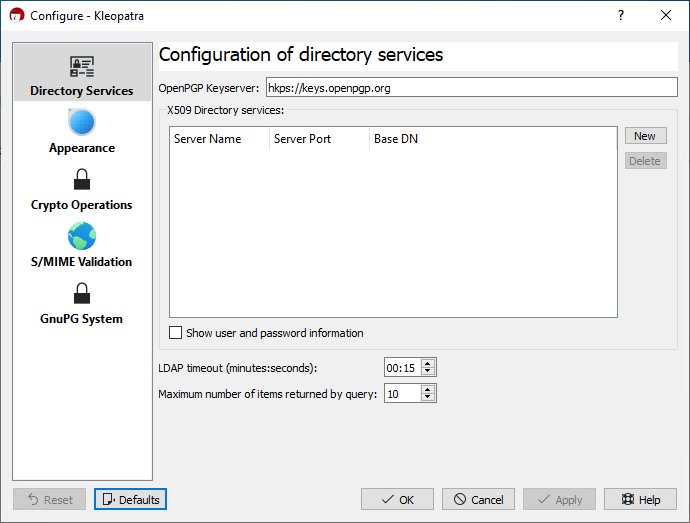
Start Kleopatra from the Windows start menu. Click on “Settings” and then on “Configure Kleopatra”.
In the OpenPGP Keyserver field enter: hkps://keys.openpgp.org and click on “OK“.
Import public key
Method 1
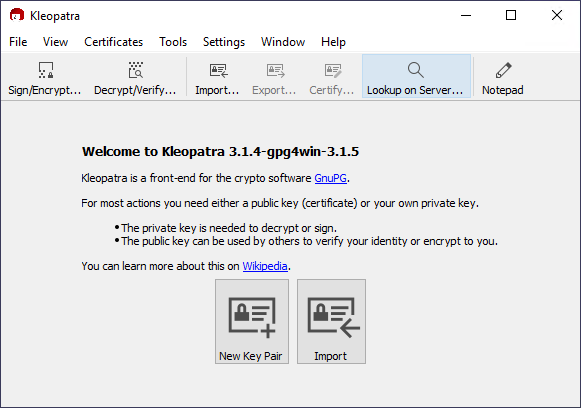
Click on “Lookup on Server…“
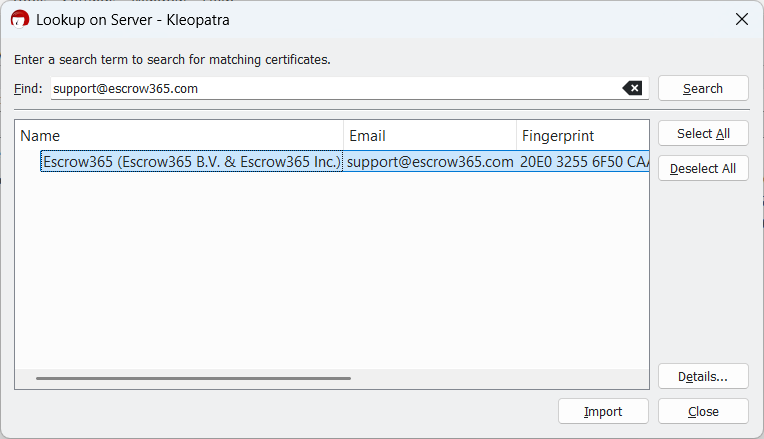
Enter support@escrow365.com or 991D2162F4E61CEC and click on “Search“.
Wait while Kleopatra searches for the public key, and when found select the Escrow365 public key and click on “Import”.
Method 2
Inadvisable!
Only use this method in case “Lookup on Server…” method does not work
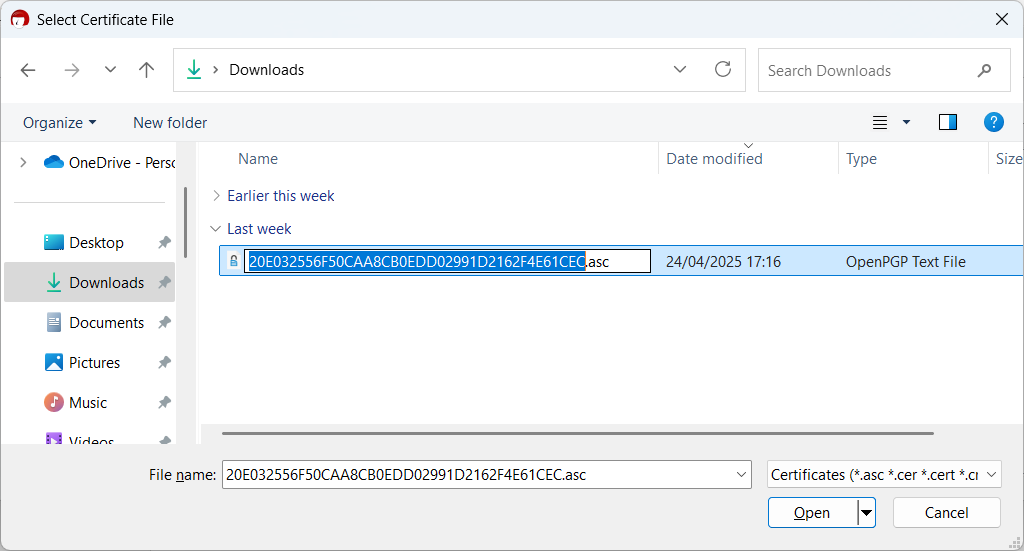
Download the Escrow365 public key: Escrow365 PGP Public Key and save to your “Downloads” folder.
In Kleopatra, click on “Import…” and browse to your Downloads folder and select the downloaded Escrow365 public key: “20E032556F50CAA8CB0EDD02991D2162F4E61CEC.asc” and click on “Open”.
Verify the fingerprint
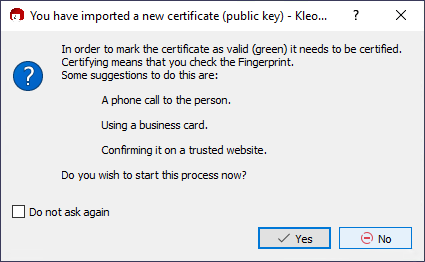
On import you will get the question to “verify the fingerpring” as shown blow; choose “No“.
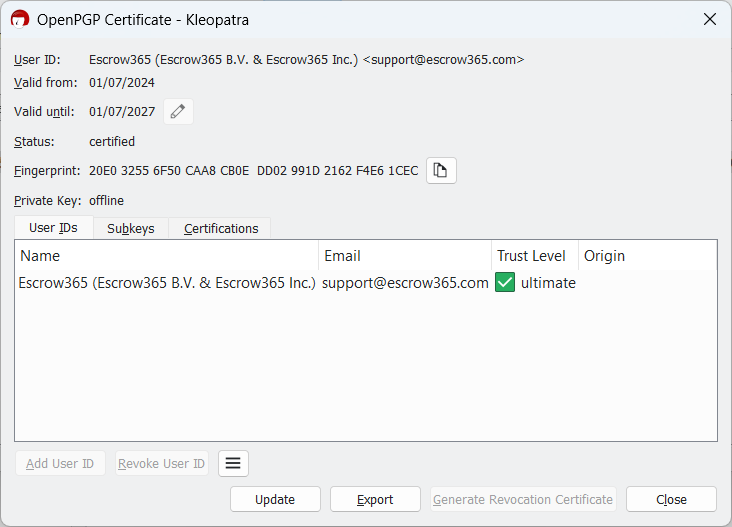
Double click on the imported key and verify that the fingerprint matches:
20E0 3255 6F50 CAA8 CB0E DD02 991D 2162 F4E6 1CEC.
If these match; choose “Close” to close the Certificate Details window.
Fingerprint not matching?
If the fingerprint does not match, you have imported the wrong key (not from Escrow365) and you should remove the key and ensure you import the correct Escrow365 PGP key.
Prepare escrow material
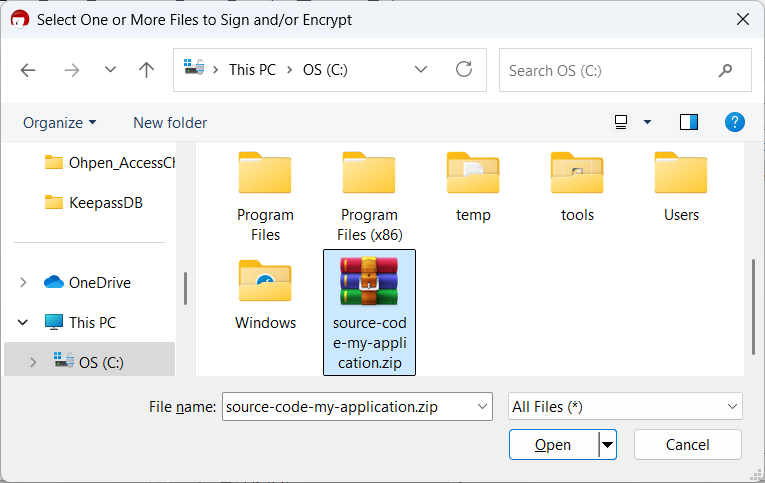
After you have created an archive of all deposit material, this material should be encrypted. In the examples below we have created a “zip” archive of our escrow material with the name “source-code-my-application.zip“.
Select the file to encrypt (e.g. source-code-my-application.zip) and click on Open.
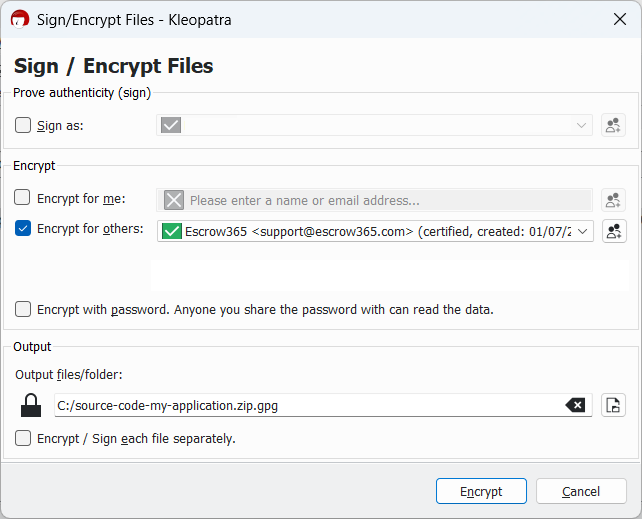
Un-check “Sign as” and un-check the “Encrypt for Me” options.
In the “Encrypt for others” field, choose the Escrow365 certificate and click “Encrypt“.
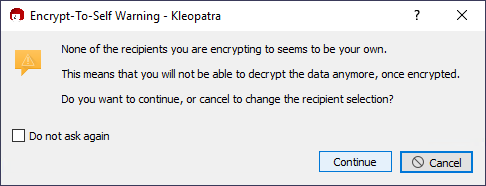
Click on “Continue” when you get the warning below:
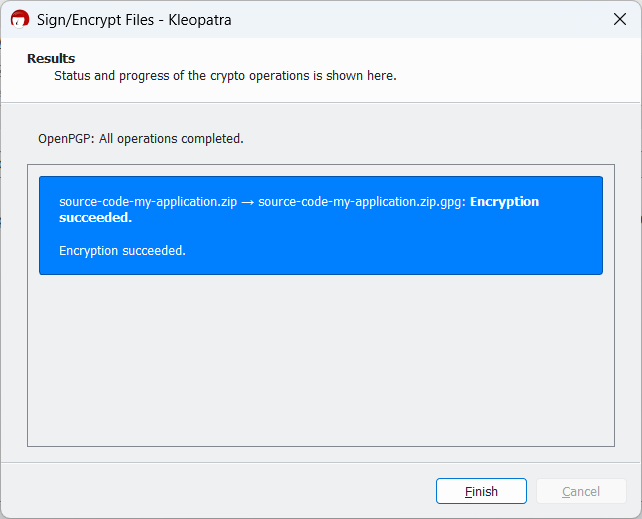
Click on “Finish”
The encrypted file with the extension .gpg is placed in the same location as the original unencrypted file. For reference and subsequent update deposits Escrow365 strongly advises to keep a copy of the original un-encrypted file/archive.
GPG Suite (MacOS)
GPG Suite is a collection of software for encrypting and decrypting, signing and verifying files or emails for MacOS.
Our recommendation
Some versions of GPG Suite include a one-month trial of GPG Mail. Click on Customise during the installation and deselect GPG Mail, if you do not wish to install GPG Mail.
Note that GPG Mail is not required to sign and encrypt files.
Download GPG Suite installer from https://gpgtools.org.
Installation
Open the installer GPG_Suite-2023.3.dmg and double click on Install.
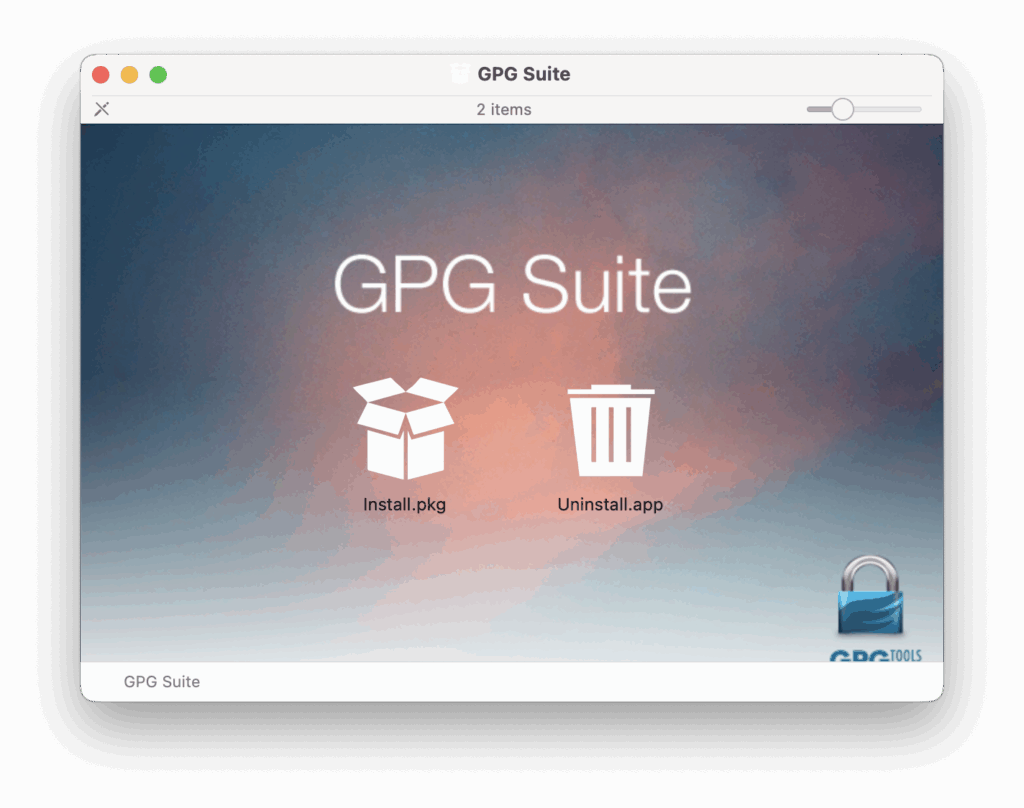
Click on “Install.pkg” to start the installation.
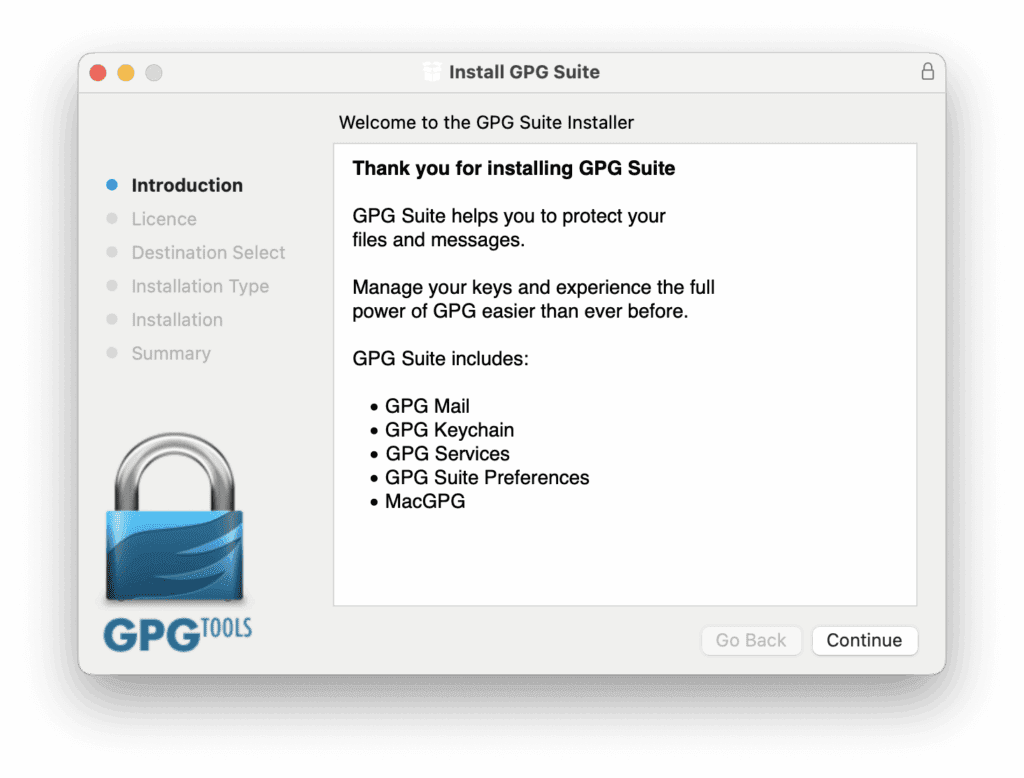
On the installation overview page, click “Continue“.
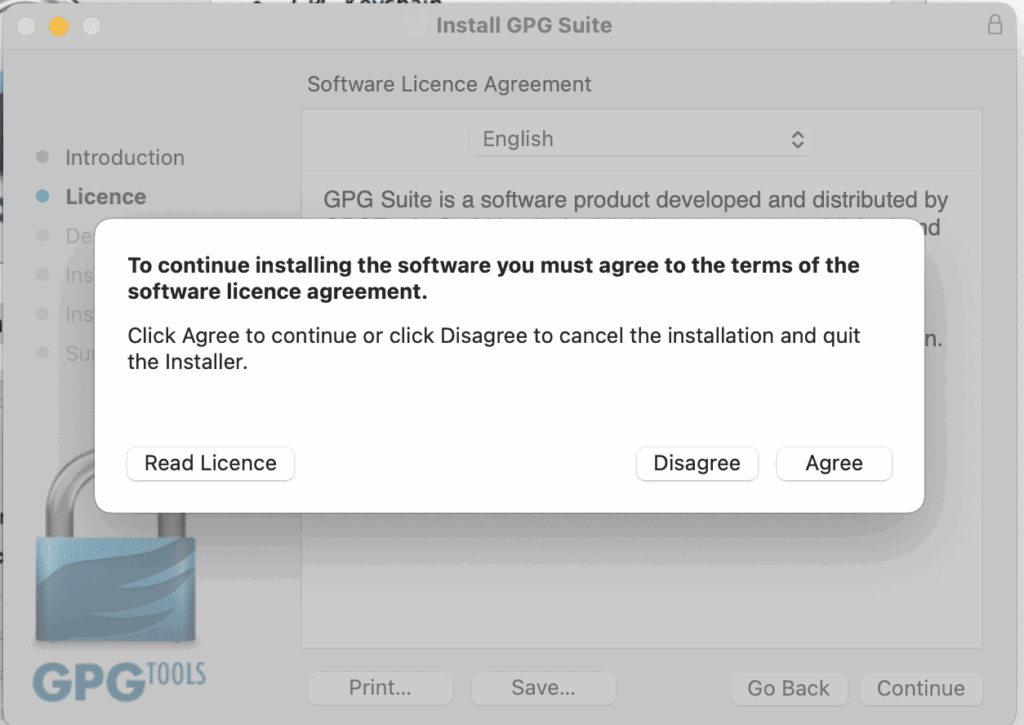
Now you have to agree with the terms of GPG Suite: click on “Agree” to accept the software license agreement.
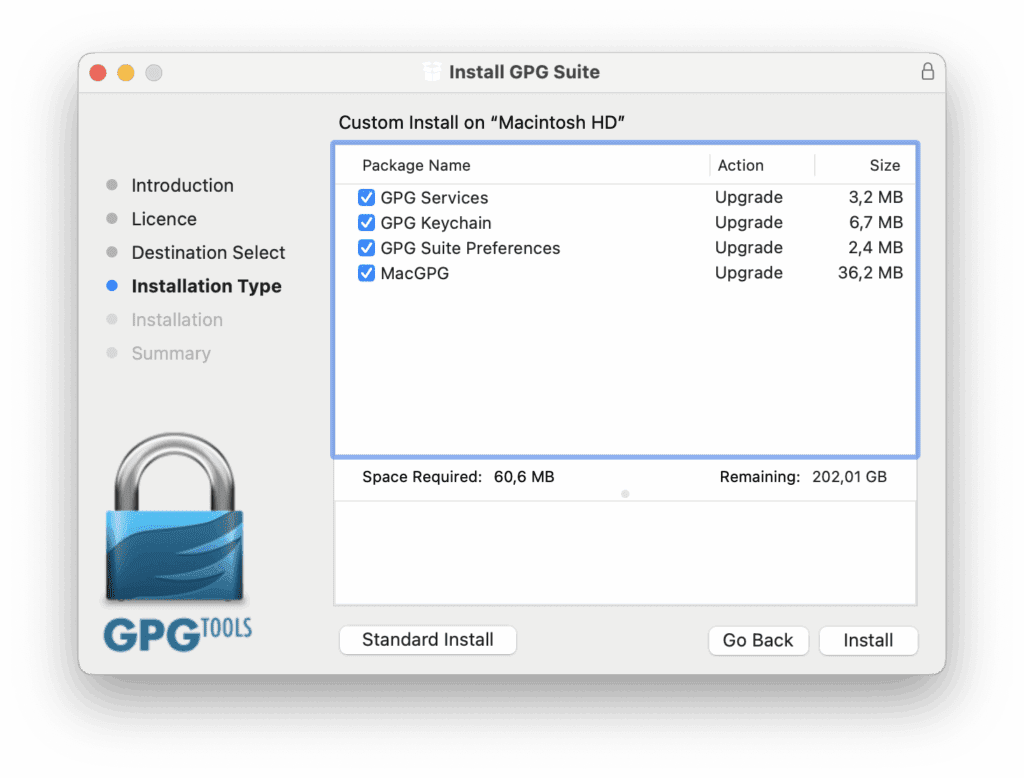
Click on Customise and de-select “GPG Mail 4” and “GPG Mail 3” if these options are shown and you do not wish to use them. If these options are not there, just continue with the installation by selecting “Install“.
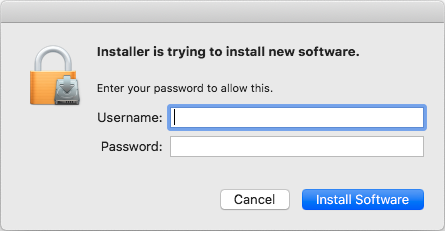
Enter you (MacBook) login details when asked and click on “Install Software” to start the installation.
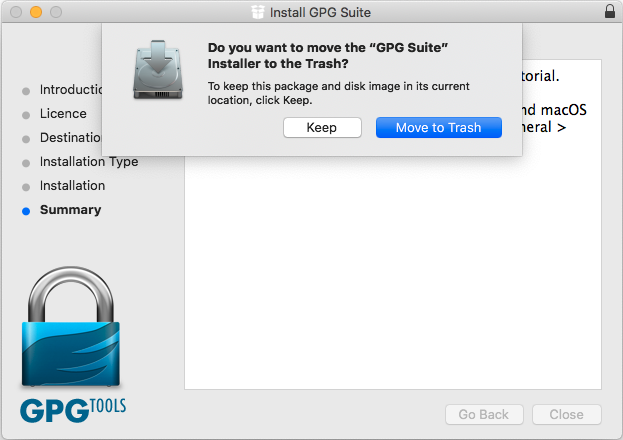
After the installer is finished, click on “Close” and on “Move to Trash” to complete the installation.
On the question to Generate a new key pair: click on “Cancel” to skip this step. It’s not needed, since you will be using the Escrow365 encryption key.
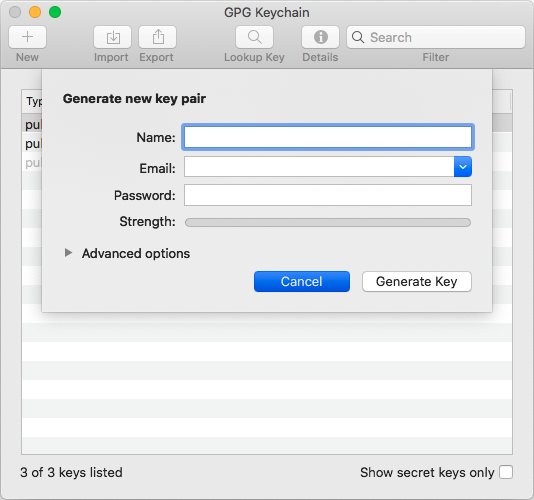
Import public key
Once the GPG Suite installation is completed you can import the Escrow365 public key.
Start the GPG Keychain application and click on “Lookup Key”.
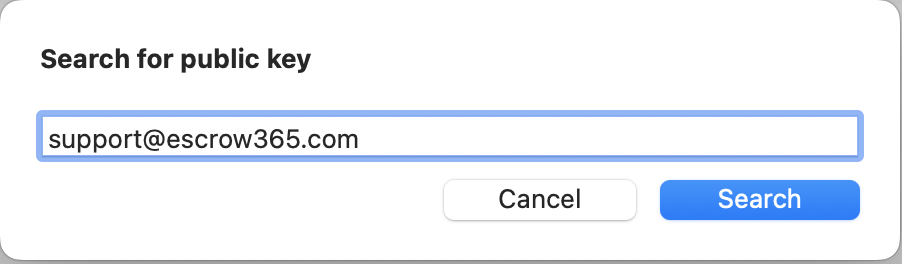
Enter support@escrow365.com or 991D2162F4E61CEC and click on Search.
Verify that the presented fingerprint matches 20E0 3255 6F50 CAA8 CB0E DD02 991D 2162 F4E6 1CEC and click on “Import Key“.
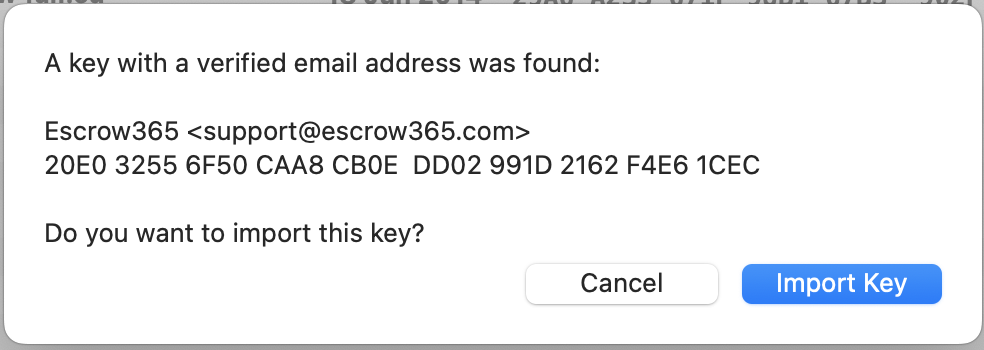
Fingerprint not matching?
If the fingerprint does not match, you found the wrong key (not from Escrow365) and you should not install that key. Always ensure you import the correct Escrow365 PGP key with fingerprint 20E0 3255 6F50 CAA8 CB0E DD02 991D 2162 F4E6 1CEC, in case of doubt contact us via support@escrow365.com
Click on “OK” to dismiss the “Import successfull” notification.
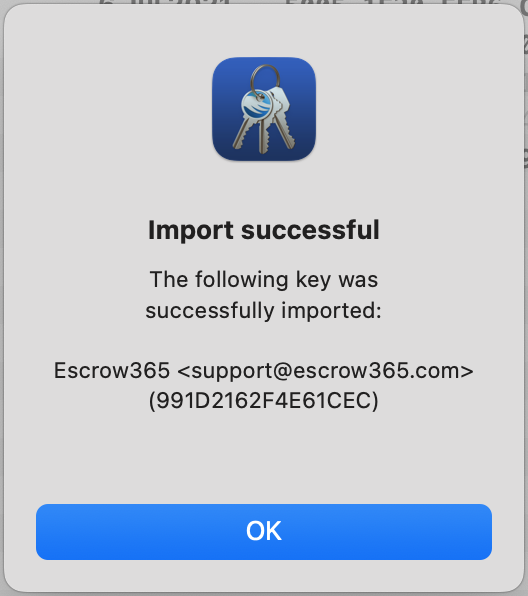
Prepare escrow material
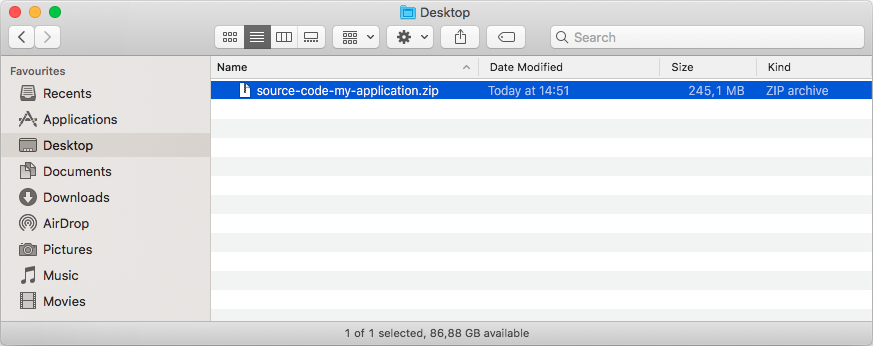
After you have created an archive of all deposit material, this material should be encrypted. In the examples below we have created a “zip” archive of our escrow material with the name “source-code-my-application.zip“.
In your “Finder” application, select the file to encrypt (e.g. source-code-my-application.zip) and right-click (Control-click) on the file to open file context/pop-up menu.
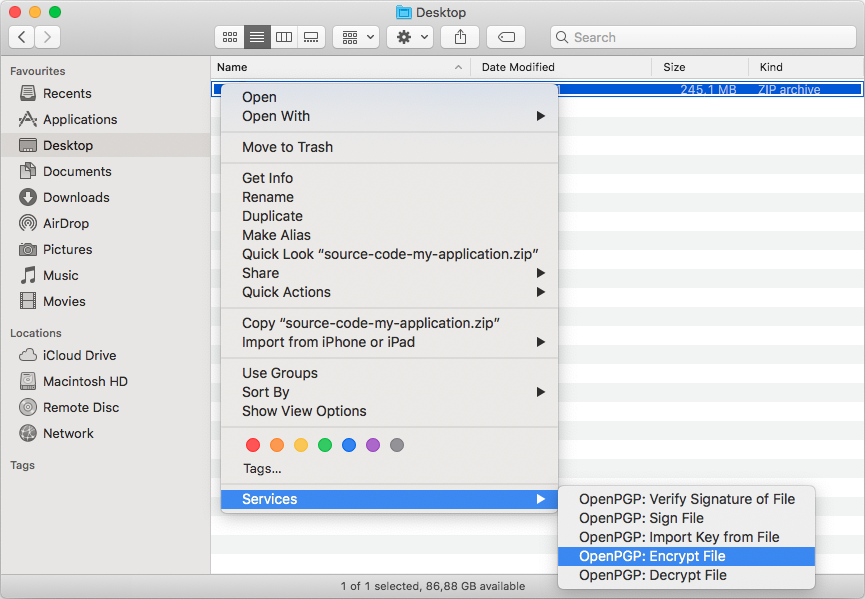
In the context/pop-up menu choose “Services” and then “OpenPGP: Encrypt File“.
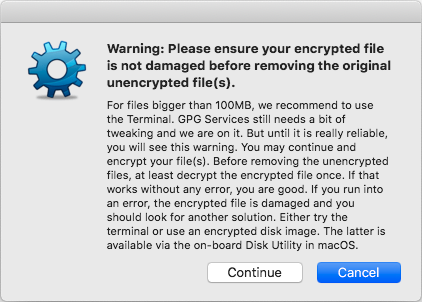
If a warning is given as shown below, click on “Continue” to dismiss this warning.
Select the Escrow365 key with fingerprint 20E0 3255 6F50 CAA8 CB0E DD02 991D 2162 F4E6 1CEC and click on Encrypt.
The encrypted file with the extension .gpg is placed in the same location as the original unencrypted file. For reference and subsequent update deposits Escrow365 strongly advises to keep a copy of the original un-encrypted file/archive.